
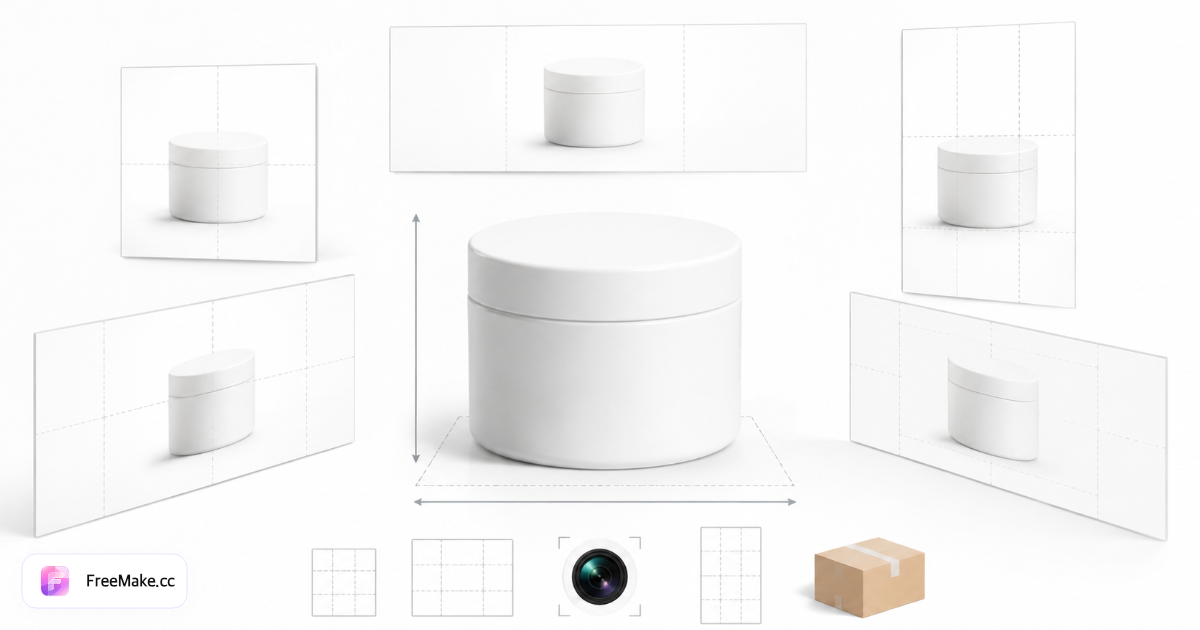
Amazon image sizes at a glance
| Image type | Minimum | Recommended | Aspect ratio | Format |
|---|---|---|---|---|
| Main image | 1000×1000px | 2000×2000px | 1:1 | JPEG (preferred) |
| A+ content module | 970×300px | 1464×600px | ~2.44:1 | JPEG, PNG |
| Infographic (alt image) | 1000×1000px | 1500×1500px | 1:1 | JPEG, PNG |
| Brand store header | 3000×600px | 3000×600px | 5:1 | JPEG, PNG |
Seller scenarios: fix listing images step by step
Main image blocked until pixels meet the minimum
Your supplier delivered an 800×800 JPEG. Seller Central may accept the file, but the listing stays inactive until the longest side reaches at least 1000px.
- Check pixel dimensions in your file browser or preview panel — note width and height.
- Open the ecommerce resize tool and pick the Amazon 2000×2000 preset (square output).
- Export as JPEG and spot-check product edges — no accidental cropping of the pack.
- Re-upload as the main image and confirm zoom works in the listing preview.
Light grey studio background fails the main image check
The product shot looks white on your monitor, but Amazon expects pure RGB white (255,255,255). Off-white seamless paper often triggers background warnings.
- Start from the highest-resolution source you have — avoid upscaling a tiny file first.
- Run the white-background tool to normalize the backdrop without clipping the product.
- Pass the file through the compliance checker for square ratio and background rules.
- Upload the revised JPEG as the main image; move lifestyle scenes to secondary slots.
Upload stalls because the JPEG is too heavy
A 2000×2000 export straight from the camera can be 6–10 MB. Uploads time out and product pages load slowly even when dimensions are correct.
- Confirm dimensions first — compression cannot fix missing pixels.
- Compress locally in the browser; aim for sharp detail at a reasonable file weight.
- Open the compressed file at 100% zoom and verify text or fine packaging lines.
- Upload to Seller Central and note the file size shown in the media manager.
5 common Amazon image rejections (and how to fix)
Image too small (<1000px)
Amazon requires at least 1000px on the longest side for zoom. Use the FreeMake.cc resizer with the Amazon 2000×2000 preset.
Non-white main image background
Main images should use pure white RGB (255,255,255). Use the white background tool before re-checking compliance.
File size too large
Heavy JPEGs slow page loads and may fail upload limits. Compress locally after resizing.
Wrong aspect ratio
Main images must be square. Lock 1:1 when exporting lifestyle or infographic variants.
Text or logos on main image
Amazon restricts promotional text on the main image. Move badges to secondary images or A+ modules.
Amazon image FAQ
- What size should Amazon product images be?
- At least 1000×1000px for zoom; many sellers use 2000×2000px JPEG for the main image.
- Does Amazon require a white background?
- The main product image should be on pure white. Lifestyle images can use scenes in secondary slots.
- Can I upload PNG to Amazon?
- JPEG is preferred for main images. PNG is allowed for some secondary and A+ assets.
- Can a lifestyle photo be the main image?
- No — the main image should show the product alone on pure white. Lifestyle or in-context shots belong in secondary image slots or A+ modules.
- Does Amazon require a specific DPI?
- Amazon specifies pixel dimensions, not DPI. A 2000×2000 JPEG exported at 72–300 DPI is fine as long as the pixel count and background rules are met.
- Should I resize before or after background cleanup?
- Clean the background on the largest master file, then resize to a square 2000×2000 export. Resizing first can soften edges before background removal.
Prepare your Amazon images with FreeMake.cc
Browser-local tools — no upload required for resize, compliance check, and compression.
Related reading
- Shopify Image Size Guide 2026
Shopify product, collection, and theme image specs — plus free local tools to export listing-ready files.
- GPT Image 2 Free Online — No Signup Guide (2026)
Use GPT Image 2 free on FreeMake.cc without ChatGPT Plus or signup. Prompt tips, limits, and when to switch models for text-in-image and packshots.
- 10 Best Free AI Image Generators in 2026 (Ranked & Compared)
Compare the best free AI image generators in 2026 — GPT Image 2, Gemini 3, Qwen, Seedream, Flux 2. Free on FreeMake.cc, no signup. Processed locally in your.