
For designers, poster creators & remix workflows
AI Layer Splitter Online — PNG Layers for Figma
Author: FreeMake.cc Imaging TeamLast updated:
Decompose one image into 2–8 transparent PNG layers with AI. Export to Figma, Photoshop, or Canva for compositing.
- Auto-split posters and illustrations into transparent layers — skip manual cutouts
- Download each layer and drop into Figma or Photoshop
- Choose 2–8 layers — more layers mean finer splits
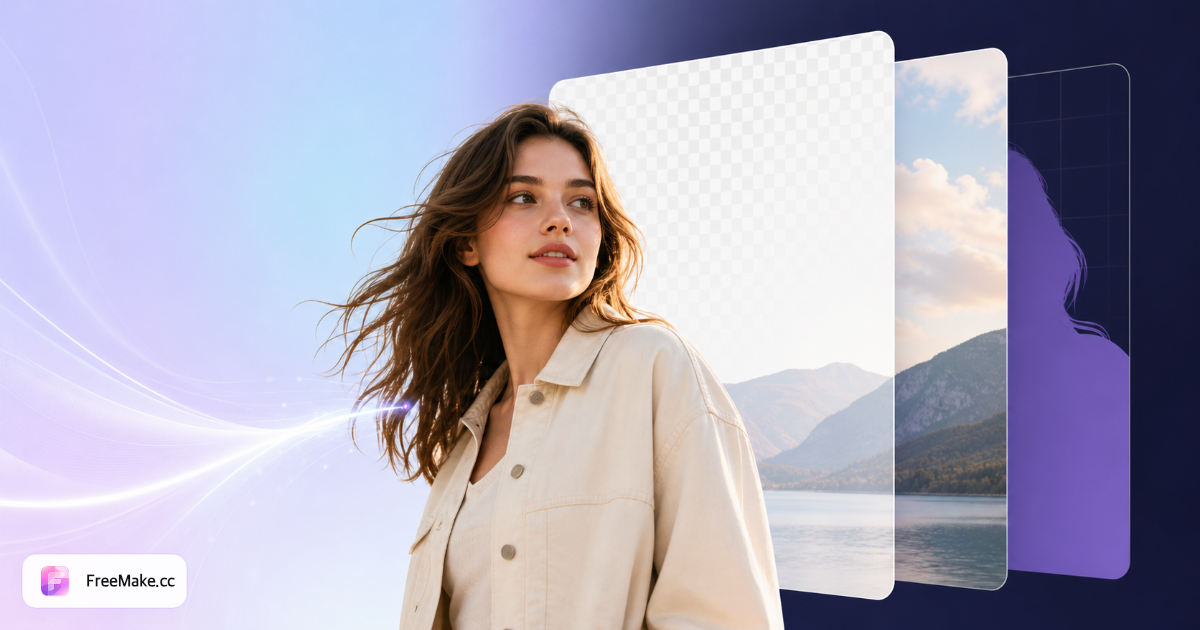
References: Figma import layers guide
How to Split an Image Into Editable Layers
Learn how to split an image into layers online with AI. Upload one JPG, PNG, or WebP and decompose it into 2–8 transparent PNG layers for Figma, Photoshop, or Canva. Upload required because processing uses cloud AI, unlike local compress or resize tools.
Upload a clear subject image
Choose product shots, portraits, or simple compositions with distinct edges. Busy backgrounds or hair-level detail may need manual touch-up after split—studio product photos on neutral sets work best.
Run AI layer separation
The model detects foreground subjects and background regions, exporting each as its own layer. Review the preview before downloading—complex glass or fine fur may split imperfectly.
Download individual PNG layers
Each layer arrives as transparent PNG suitable for Figma, Canva, or Photoshop compositing. Sellers use splits to swap backgrounds for seasonal campaigns without reshooting.
Composite in your design workflow
Stack layers, replace backgrounds, or export elements for thumbnails and A+ content modules. Pair with white-background or remove-background tools when marketplace JPG rules apply.
Why Layer Split Helps Creative Sellers
Flat photos limit how fast you can test backgrounds, badges, and layout variants. Split layers accelerate ad creative and detail-page storytelling without a full reshoot.
Refresh listings without new photography
Swap seasonal backgrounds or promo banners behind the same product layer. Faster than scheduling another studio day for every campaign.
Build modular ad assets
Export subject and shadow separately for consistent brand templates across Meta, Google, and Amazon DSP creatives.
Bridge AI and local editing
AI split handles separation; local tools handle compress, resize, and compliance before final upload—mix cloud AI where it saves time.
FreeMake.cc vs Photopea, Adobe Express & Remove.bg
Photopea and Express offer manual layers; Remove.bg focuses on cutouts not multi-layer decomposition. FreeMake.cc layer split targets editable PNG stacks from one upload.
| Feature | FreeMake.cc | Photopea | Adobe Express |
|---|---|---|---|
| AI auto layer split | Yes | Manual selection | Limited auto |
| Transparent PNG export | Per layer | Manual export | Per project |
| E-commerce product focus | Yes | General editor | Templates |
| 100% local processing | No — AI upload | Browser/local | Cloud |
| Free tier | Paid or gift credits | Free editor | Free with limits |
Output Formats and Best Inputs
Layers export as PNG with alpha transparency—the standard for compositing in design tools. JPG sources are accepted; output remains PNG to preserve cut edges.
Not ideal for scanned documents or dense foliage—use remove-background for simple solid-bg cutouts, or manual masking in Photopea for hair-level matting.
Choose fewer layers (2–3) when you only need subject vs background. Use 5–8 for posters and illustrations with multiple visual planes—text, subject, shadow, and backdrop as separate exports.
Accepted inputs: JPG, PNG, WebP up to 10 MB. Output is always PNG with alpha transparency—the standard for importing into Photoshop, Figma, and motion-design tools.
- PNG layers — transparent backgrounds per element
- Product on gray/white — highest split accuracy
- Portraits — separate person from backdrop for ID-style edits
- Credits — paid or signup gift credits
- 2–8 layers — finer splits for posters and illustrations
- Figma / Photoshop — drag each PNG layer into your canvas
- JPG in → PNG layers out — preserves cut edges
- E-commerce — swap backgrounds without reshooting product
Guides & topic hubs
Deep-dive guides and curated tool collections related to this workflow.
Layer split FAQ
- How does the image layer splitter work?
Upload one image, choose 2–8 layers, and FreeMake.cc generates transparent PNG layers you can download individually. Processing uses AI-assisted decomposition optimized for posters and illustrations.
- Is layer split the same as Photoshop layers?
Results are exported as separate PNG files with transparency—ready to import into Photoshop, Figma, or other editors. It is best for quick separation, not full semantic object isolation.
- What images work best for layer splitting?
Clear subjects, good contrast, and posters or illustrations with distinct foreground and background produce the cleanest layer outputs.
- Is my image uploaded?
Yes. Unlike our compress, convert, crop, and resize tools, layer split requires uploading your image for AI processing. Check usage limits before batch work.
- What can I do with split layers?
Reorder subjects, replace backgrounds, or export elements for ads, thumbnails, and design mockups.
- How is layer split billed?
This tool does not use daily free credits. Sign in and use paid credits from checkout/subscription, or signup gift credits. Each run costs about 3 credits.
- How is layer split different from remove background?
Remove background outputs one cutout on a transparent PNG. Layer split decomposes one image into 2–8 separate editable layers—better for posters, compositing, and multi-element remix work.
- Can I import split layers into Figma or Photoshop?
Yes. Each layer downloads as a transparent PNG you can drag into Figma, Photoshop, Canva, or Affinity. Stack layers to rebuild the composition or swap individual elements.
- How many layers should I choose—2 or 8?
Use 2–3 layers for simple product-on-background splits. Choose 5–8 when you need finer separation on posters, illustrations, or multi-element compositions. More layers mean finer splits but may need touch-up on complex edges.
- Can I split a JPG into transparent PNG layers?
Yes. Upload JPG, PNG, or WebP sources—the tool exports each layer as transparent PNG to preserve cut edges for design compositing.
- Does layer split work for e-commerce listing photos?
Yes for creative workflows—separate product from backdrop to test seasonal backgrounds or ad layouts. For marketplace hero JPG uploads, finish with white-background, resize, and compliance tools.
After splitting into layers
Your image is split into transparent PNG layers. Finish the design pipeline:
- Remove Background from Image
Remove background noise or isolate the hero subject before re-export.
- Layout-Style Edit
Edit individual elements with AI layout-style replacement.
- Image Compressor
Compress layer PNGs for faster Figma or web load times.
- Bulk Multi-Size Export
Export marketplace sizes when layers become listing assets.
Result: editable layers optimized for design tools and ecommerce.
More free image tools
Explore other browser-based utilities on FreeMake.cc—all linked for quick access.