
For sellers with low-res supplier photos
Image Upscaler Free Online
Author: FreeMake.cc Imaging TeamLast updated:
2×, 3× or 4× enlargement in your browser
- Meet minimum pixel requirements from small sources
- Batch upscale up to 10 images
- Local processing—no server upload
References: Amazon zoom requirements
How to Upscale Images Online Locally
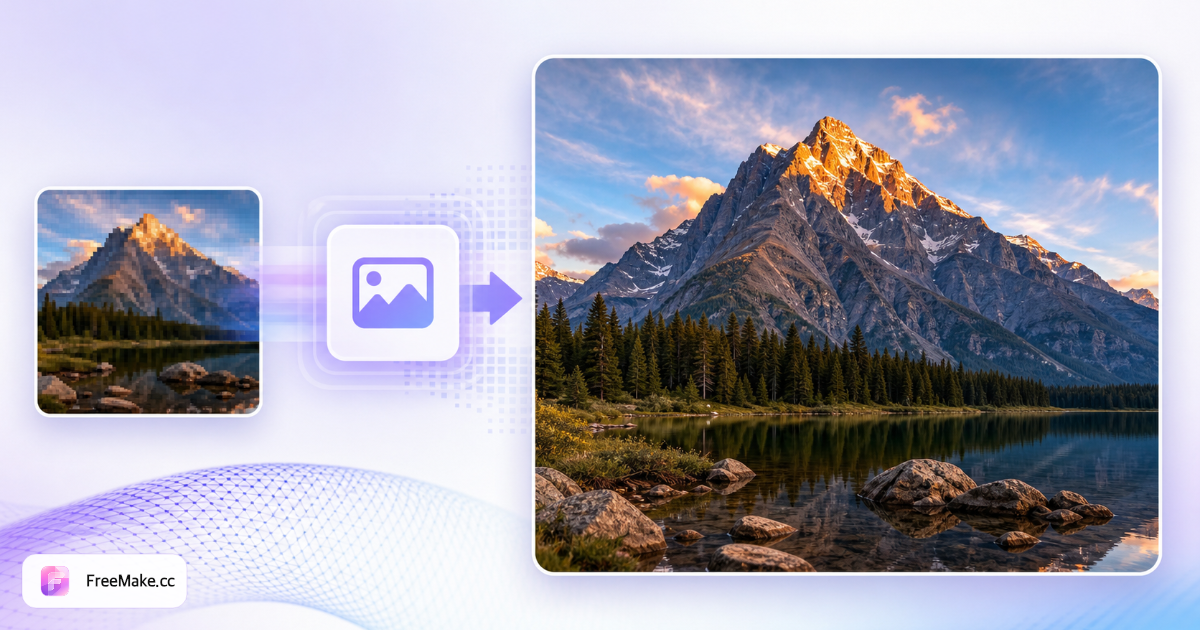
Marketplace minimums and zoom views expose soft phone photos shot too small. FreeMake.cc upscales images in your browser with quality-preserving resampling—batch friendly, no upload, preview before download. Use when supplier packs or scraped references fall short of 1600 px+ rules but a reshoot is days away.
Upload images below target pixels
Supplier thumbnails, scraped references, or old catalog scans are common sources. Start from the largest file available—upscaling cannot invent detail that never existed.
Choose upscale factor or target size
2× is typical for web listings; aggressive enlargement from tiny sources will blur. Pair modest upscale with compress after hitting dimension requirements.
Compare sharpness in preview
Inspect text on packaging and fabric weave before export. If edges look mushy, reshoot or source higher-resolution photography instead of stacking multiple upscales.
Resize to exact marketplace pixels
Upscale first to exceed minimum longest side, then resize to 2000×2000 or category spec. Run compliance checker before Seller Central upload.
Why Upscale Before Marketplace Upload
Undersized heroes look unprofessional in zoom and may fail automated checks. Local upscaling bridges the gap when reshooting is not immediate.
Rescue marginal supplier assets
Wholesale packs sometimes include 800 px previews. Modest upscale plus sharpen workflow beats delaying launch for a reshoot.
Meet 1600 px+ longest-side rules
Amazon and ads platforms enforce pixel floors. Upscale locally until resize presets snap to compliant dimensions.
Private enlargement of exclusives
Prototype photos stay on-device—no cloud super-resolution services processing confidential SKUs.
Bridge between AI upscale and listing export
After AI tools sharpen a hero, run a modest local upscale plus resize to hit exact 2000×2000 px before compress—keeps file size predictable without another paid API call.
FreeMake.cc vs Bigjpg, Upscale.media & Let's Enhance
AI upscalers like Bigjpg and Let's Enhance excel on artistic content via server GPUs. FreeMake.cc offers local resampling tuned for practical listing enlargement—no upload, no credits, and direct links to resize and compress on the same site.
| Feature | FreeMake.cc | Bigjpg | Upscale.media |
|---|---|---|---|
| Local browser upscale | Yes | Cloud AI | Cloud AI |
| Product photo focus | Yes | Mixed | Mixed |
| Batch 10 images | Yes | Credits | Limits |
| No signup | Yes | Account | Account optional |
| Linked resize & compress | Yes | Manual | Manual |
| AI detail reconstruction | Interpolation only | Strong AI | Strong AI |
| Best for product packshots | Yes — practical floors | Mixed use cases | Creative photos |
Upscale Limits and Formats
Supports PNG, JPG, and WebP inputs common in seller workflows. Output maintains source format unless you convert afterward for marketplace JPG requirements.
Upscale is not a substitute for professional photography—use for bridging small gaps, not turning 200 px icons into print posters. Chain compress last to meet MB caps.
Amazon zoom recommends 1600 px on the longest side; many sellers target 2000×2000 px heroes. Upscale until you exceed the floor, then resize to the exact square—never upscale twice from the same tiny source.
- 2× upscale — practical default for web listings
- JPG product photos — most common upscale input
- Resize after upscale — hit exact 2000×2000 heroes
- Avoid chained upscales — quality degrades quickly
- 4× — only from sharp 500 px+ sources
- WebP in — export JPG after for Amazon main images
Image upscaler FAQ
What local upscaling can and cannot do.
- AI super-resolution?
No—browser interpolation only (2×/3×/4×). Won’t invent fine detail.
For product photos, use dedicated AI upscalers first, then compress/resize here.
- Max scale?
Up to 4×. Higher scales = larger files and softer look.
- Upload? Batch?
No upload. Up to 10 images.
- Combine with other tools?
Yes—cutout → adjust → upscale → compress is a common listing chain.
- How much can I enlarge an image?
Best for modest upscales from decent sources. Extreme enlargement from tiny files may look soft.
- Upscale before or after compression?
Upscale first from the largest source you have, then compress to meet upload limits.
- Good for print or only web?
Helpful for web listings and mockups. For print, start from the highest-resolution camera file available.
- When should I use AI upscale instead?
Use Bigjpg or similar when you need reconstructed fabric weave or hair detail. FreeMake.cc local upscale is best for modest 2× enlargement of already-decent packshots before resize and compress.
After upscaling product photos
Sharper images need marketplace finishing steps:
- Image Compressor
Compress upscaled files that exceed platform size limits.
- Image Resizer
Resize to exact listing dimensions with platform presets.
- Image Compliance Checker
Run compliance checks before bulk upload.
Result: enhanced images that still pass marketplace rules.
More free image tools
Explore other browser-based utilities on FreeMake.cc—all linked for quick access.